Committing
The Commit Panel is where you write your commit message and create commits. It supports several convenience features to speed up your workflow.
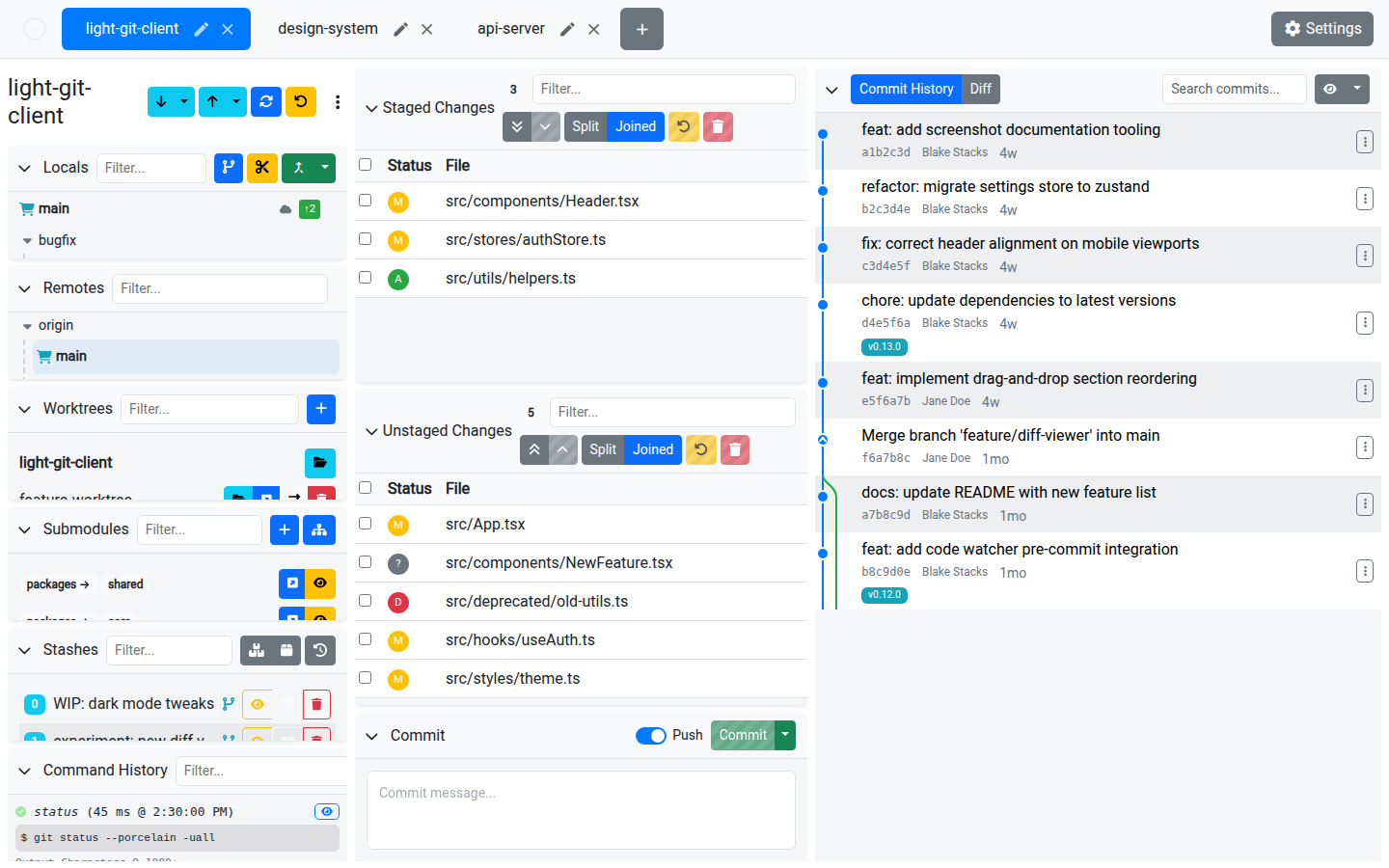
Writing a Commit Message
The commit message editor is a markdown-aware text area with built-in autocomplete.
Autocomplete
Start typing to get suggestions for:
- Filenames and paths from your staged and unstaged changes
- Branch names from your local branches
Spaces in suggestions are automatically replaced with hyphens, and branch name validation rules are applied.
Commit Options
| Action | Description |
|---|---|
| Commit | Create a commit with the current staged changes and message. |
| Amend | Amend the previous commit. Available from the commit button dropdown. This replaces the last commit with the current staged changes and message. |
| Commit and Push | When enabled (via the checkbox), the app will automatically push after a successful commit. This option can be set as the default in Settings. |
Code Watcher Check
If you have Code Watchers configured, they run automatically against your staged changes before every commit.
- If any watcher rules match, an alerts modal is shown with details about each match
- You can review the matches and choose to Commit Anyway or cancel
- The alerts button in the commit panel shows a count when there are active matches
Validation
The commit button is disabled when:
- No files are staged
- The commit message is empty
CRLF Warning
When the app detects files with CRLF line endings, a warning indicator appears to alert you about potential line ending issues.
Tips
- Use the Amend option when you need to fix the last commit message or add a forgotten file
- Enable Commit and Push as the default in Settings if you always push after committing
- Code watchers help enforce team standards — set them up once and they'll check every commit automatically