Tabs
Light Git Client supports multiple tabs, letting you work with several repositories (or worktrees) simultaneously without opening separate windows.
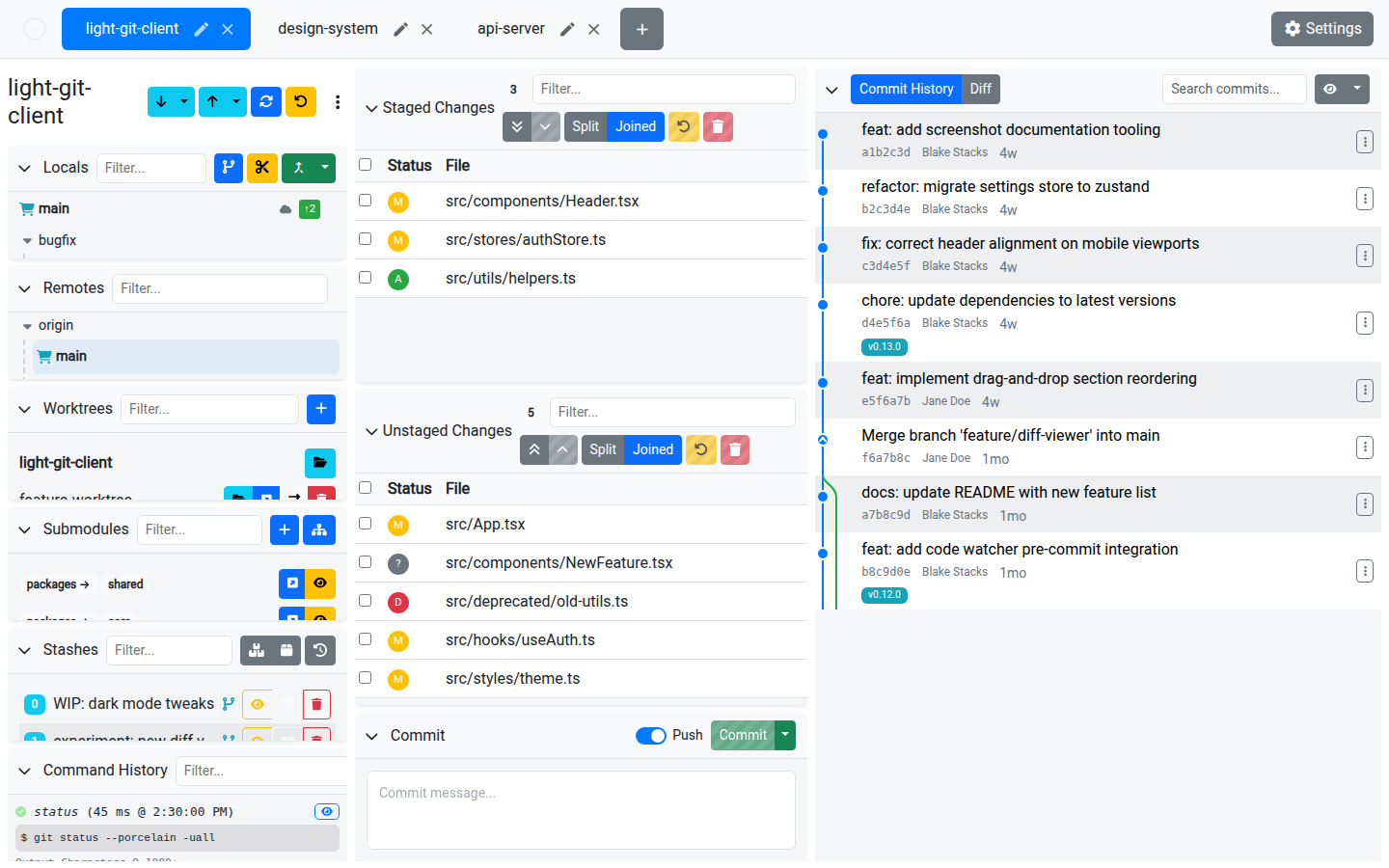
Tab Management
| Action | Description |
|---|---|
| Add Tab | Click the + button in the tab bar to open a new, empty tab. |
| Close Tab | Close a tab when you're done with it. |
| Rename Tab | Click the edit icon on a tab to give it a custom name. |
| Reorder Tabs | Drag and drop tabs to rearrange them in the tab bar. |
Tab Behavior
- Each tab maintains its own repository path and state
- The active tab is visually highlighted
- Switching tabs instantly loads the corresponding repository's branches, changes, and history
- Tabs remember their state — switching away and back preserves your scroll position, selections, and open diffs
Drag and Drop
Tabs support full drag-and-drop reordering. Click and hold a tab, then drag it to a new position in the tab bar. This uses the same smooth drag-and-drop system used throughout the app.
Use Cases
- Keep your main project in one tab while reviewing a PR in another
- Open different worktrees of the same repository in separate tabs
- Open submodules in dedicated tabs for focused work