Staging
The staging area is where you prepare changes before committing. Light Git Client shows staged and unstaged changes in separate cards, making it easy to manage exactly what goes into each commit.
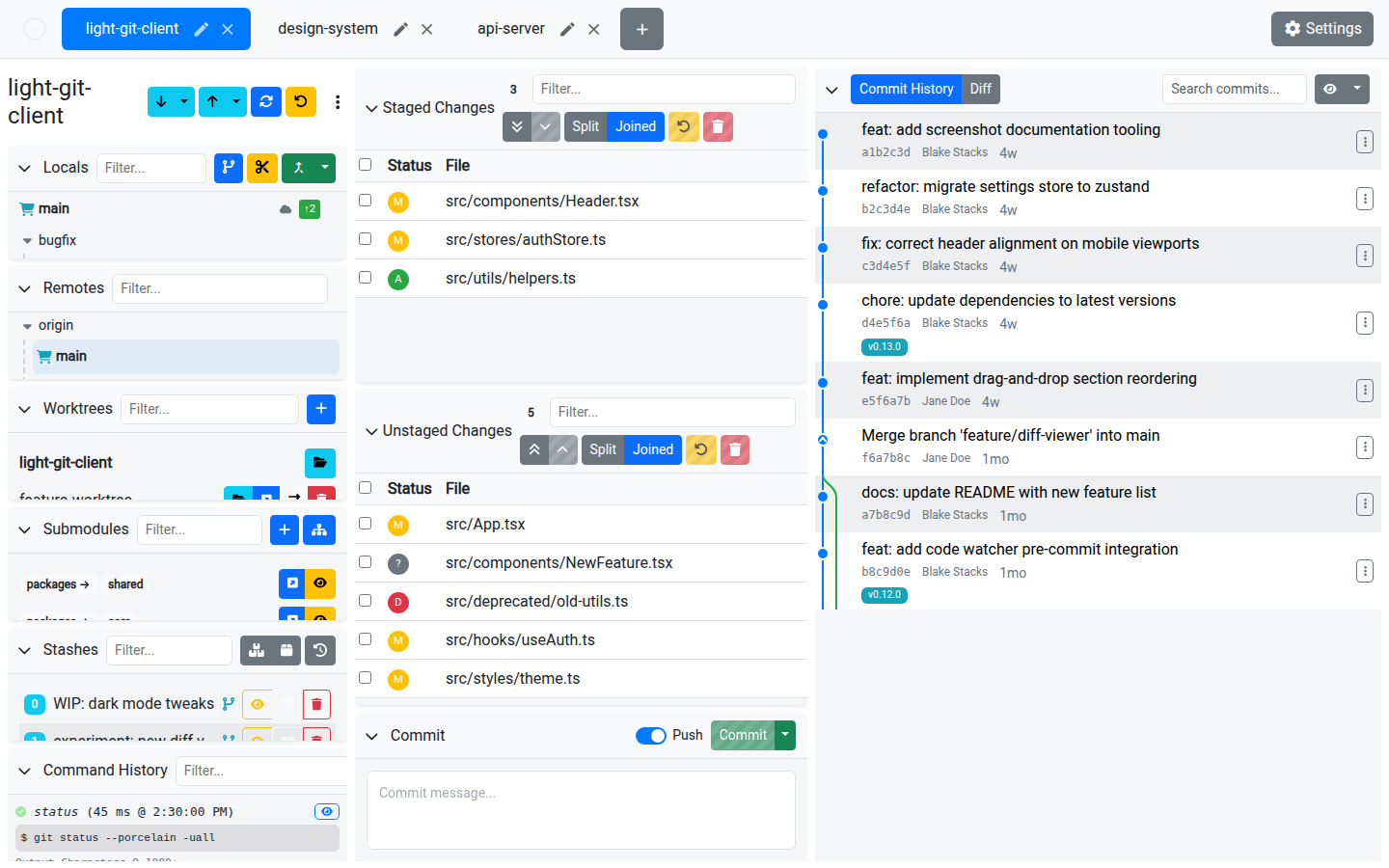
Unstaged Changes
The Unstaged Changes card shows all modified, added, deleted, and untracked files that have not yet been staged.
Operations
| Action | Description |
|---|---|
| Stage All | Move all unstaged changes to the staging area. |
| Stage Selected | Stage only the currently selected files. |
| Undo | Revert changes for selected files. The behavior depends on the file status: modified files are restored from HEAD, added/untracked files are deleted, and deleted files are restored. |
| Delete | Remove selected files from the filesystem entirely. |
| Copy Path | Copy the file path to your clipboard. |
File Selection
- Click a file to select it and view its diff
- Shift-click to select a range of files
- Status badges indicate the change type: M (modified), A (added), D (deleted), R (renamed), C (copied), U (unmerged/conflict), ? (untracked)
Staged Changes
The Staged Changes card shows files ready to be committed.
Operations
| Action | Description |
|---|---|
| Unstage All | Move all staged changes back to unstaged. |
| Unstage Selected | Unstage only the currently selected files. |
| Copy Path | Copy the file path to your clipboard. |
Display Options
- Split / Joined paths — Toggle between showing full file paths or just filenames with directory grouping
- Resizable columns — Adjust column widths in the change list
- Submodule indicator — Files belonging to submodules display a special icon
Tips
- Use the Diff Viewer to review changes before staging — you can even edit hunks inline for unstaged files.
- The Commit panel is disabled until at least one file is staged.
- During a merge conflict, unmerged files appear with a U status badge. Resolve conflicts using the diff viewer, then stage the resolved files.