Customizing Layout
Light Git Client's interface is built from draggable, hideable cards that you can arrange to match your workflow.
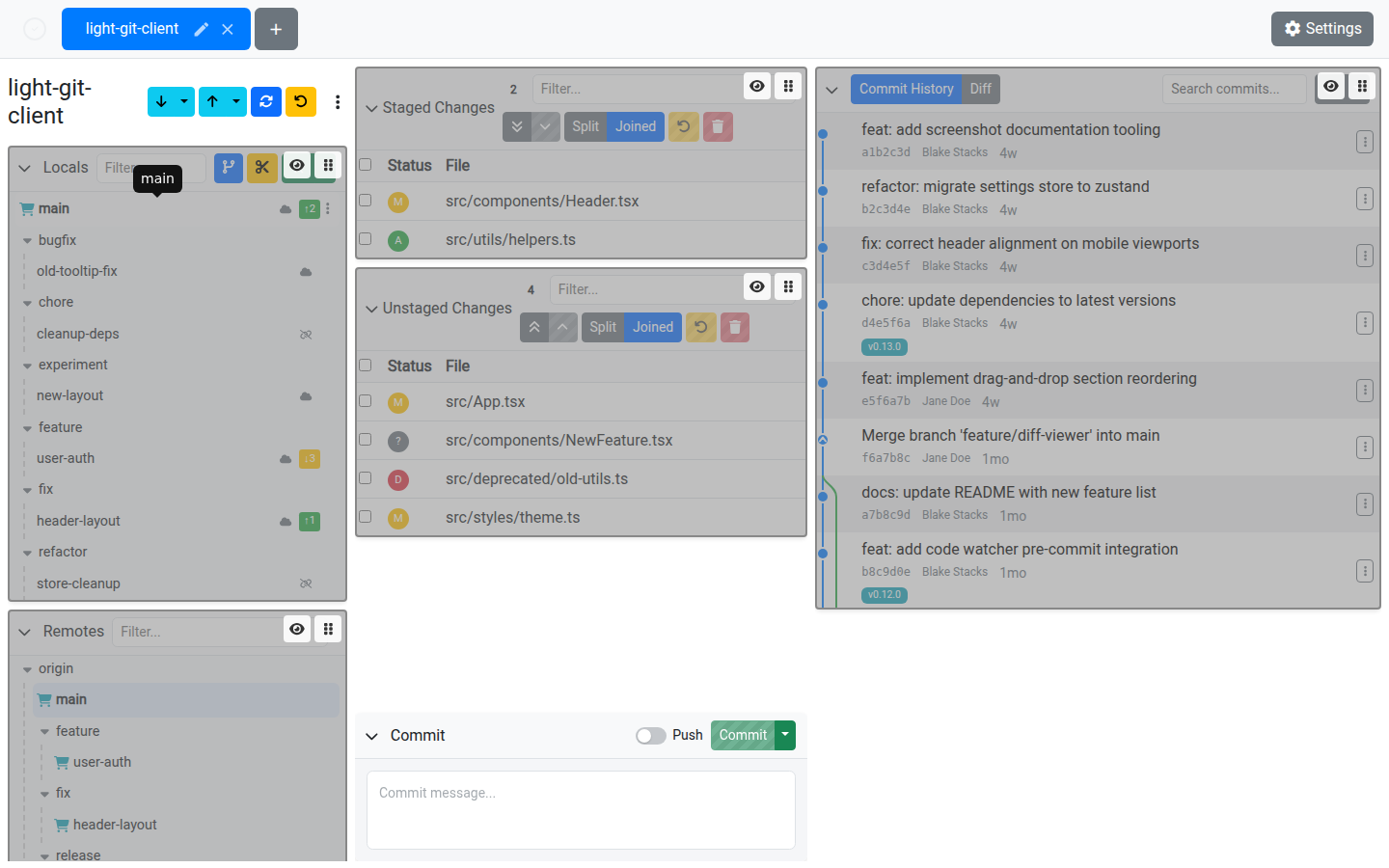
Edit Sections Mode
To start customizing your layout:
- Click the Edit Sections button in the title bar
- The interface enters edit mode with visual overlays on each card
- Rearrange, show, or hide cards
- Click Edit Sections again to exit edit mode and save your layout
Drag and Drop
In edit mode, each visible card shows a drag handle. Click and hold the handle to drag the card to a new position within its column.
The main view is divided into three columns:
- Left column — Typically branches, worktrees, submodules, stashes, command history
- Middle column — Typically staged and unstaged changes
- Right column — Typically commit history and diff viewer
Drag cards within a column to reorder them.
Show and Hide Cards
- Hide a card — In edit mode, click the Hide button on any visible card's overlay
- Show a hidden card — Hidden cards appear as collapsed placeholders with a Show Section button. Click it to restore the card.
Available Cards
The following cards can be arranged and toggled:
- Local Branches
- Remote Branches
- Worktrees
- Submodules
- Stashes
- Command History
- Staged Changes
- Unstaged Changes
- Commit History
Per-Repository Layout
Your layout preferences are saved per repository in the app's settings. This means different repositories can have different layouts — useful if you work with repos of varying complexity.
Tips
- Hide cards you rarely use (like Submodules or Worktrees) to give more space to the cards you use most
- If you work primarily with branches and commit history, move those cards to the top for quick access
- The layout persists across sessions — set it up once and forget about it