Worktrees
Git worktrees allow you to check out multiple branches simultaneously in different directories. Light Git Client provides a visual interface for managing worktrees without touching the command line.
What Are Worktrees?
A worktree is an additional working directory linked to your repository. Each worktree can have a different branch checked out, letting you work on multiple features in parallel without stashing or switching branches.
The Worktrees Card
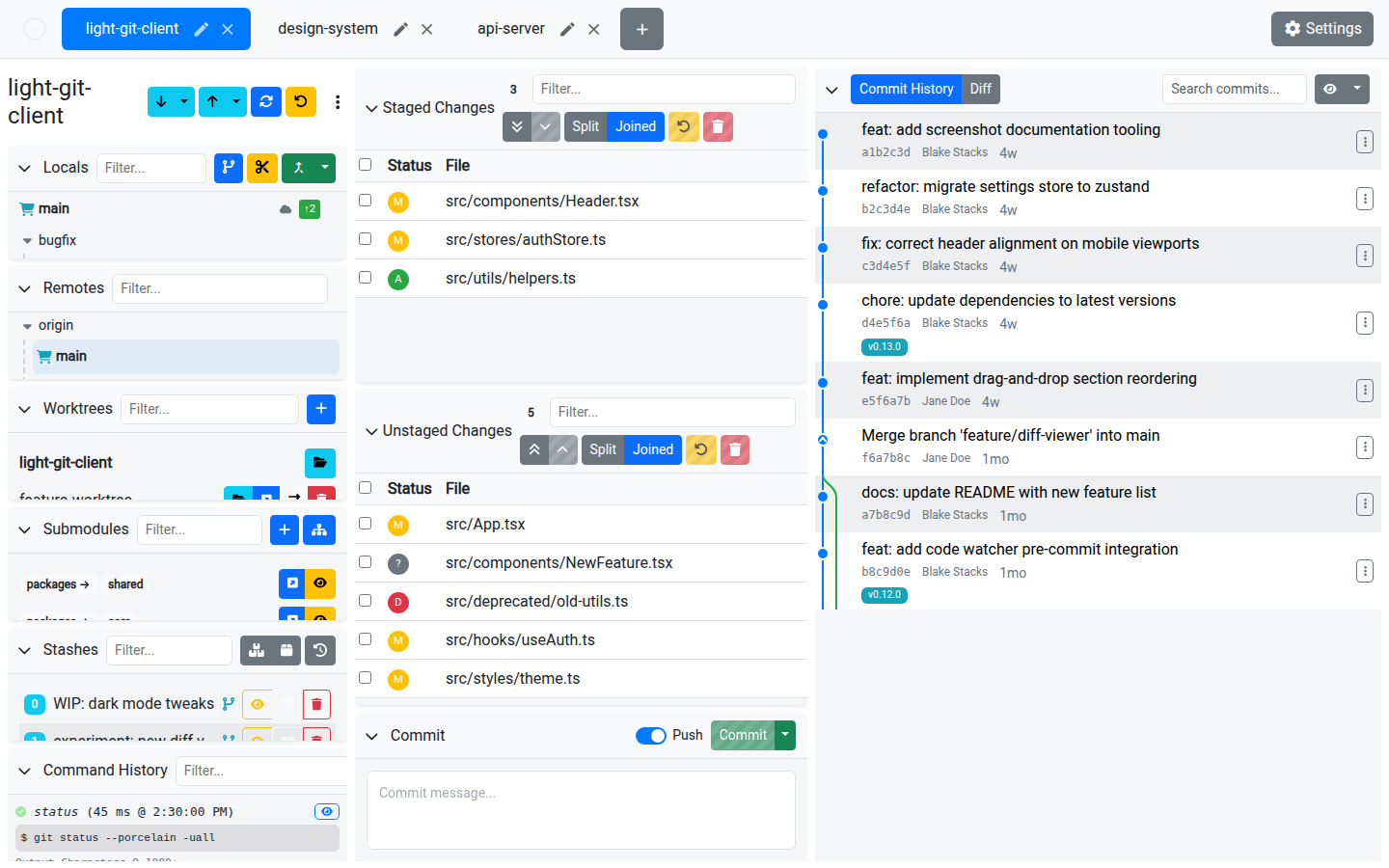
The Worktrees card lists all worktrees associated with the current repository, showing:
- The worktree path
- The checked-out branch (or "Detached" for detached HEAD)
- "Current" label for the main worktree
Operations
| Action | Description |
|---|---|
| Add Worktree | Create a new worktree at a specified path with a chosen branch. |
| Open Folder | Open the worktree directory in your system file manager. |
| Open in New Tab | Load the worktree as a new tab within Light Git Client. |
| Switch | Switch the current view to display the selected worktree. |
| Delete | Remove a worktree and its directory. |
Adding a Worktree
The Add Worktree dialog lets you:
- Browse for the destination path
- Choose an existing branch to check out, or
- Create a new branch with a custom name
Tips
- Worktrees are ideal for code review — check out a PR branch in a separate worktree while continuing your own work
- Each worktree appears as a potential tab, making it easy to switch contexts
- Branches checked out in other worktrees show a lock icon in the Branching cards to prevent conflicting checkouts
- Bare worktrees are excluded from some actions (like switch) since they have no working directory